Unbox Digital — Setup Guide
Outlook App
Password.
To connect your business Outlook to our system, we need an app password — a separate access key that keeps your real password private. Takes about 2 minutes.
Before you start — 2FA must be on
App passwords only work when two-step verification (2FA/MFA) is enabled on your Microsoft 365 account. Your IT admin may need to enable this for you.
Note: If you don't see the App password option in the steps below, your organisation's IT administrator has it disabled. You'll need to ask them to enable it — or forward this page to them. Once enabled, come back and follow the steps below.
Step by step
01
Go to your Microsoft account page
Open a browser and go to the link below. Sign in with your work email address and password when prompted.
myaccount.microsoft.com
02
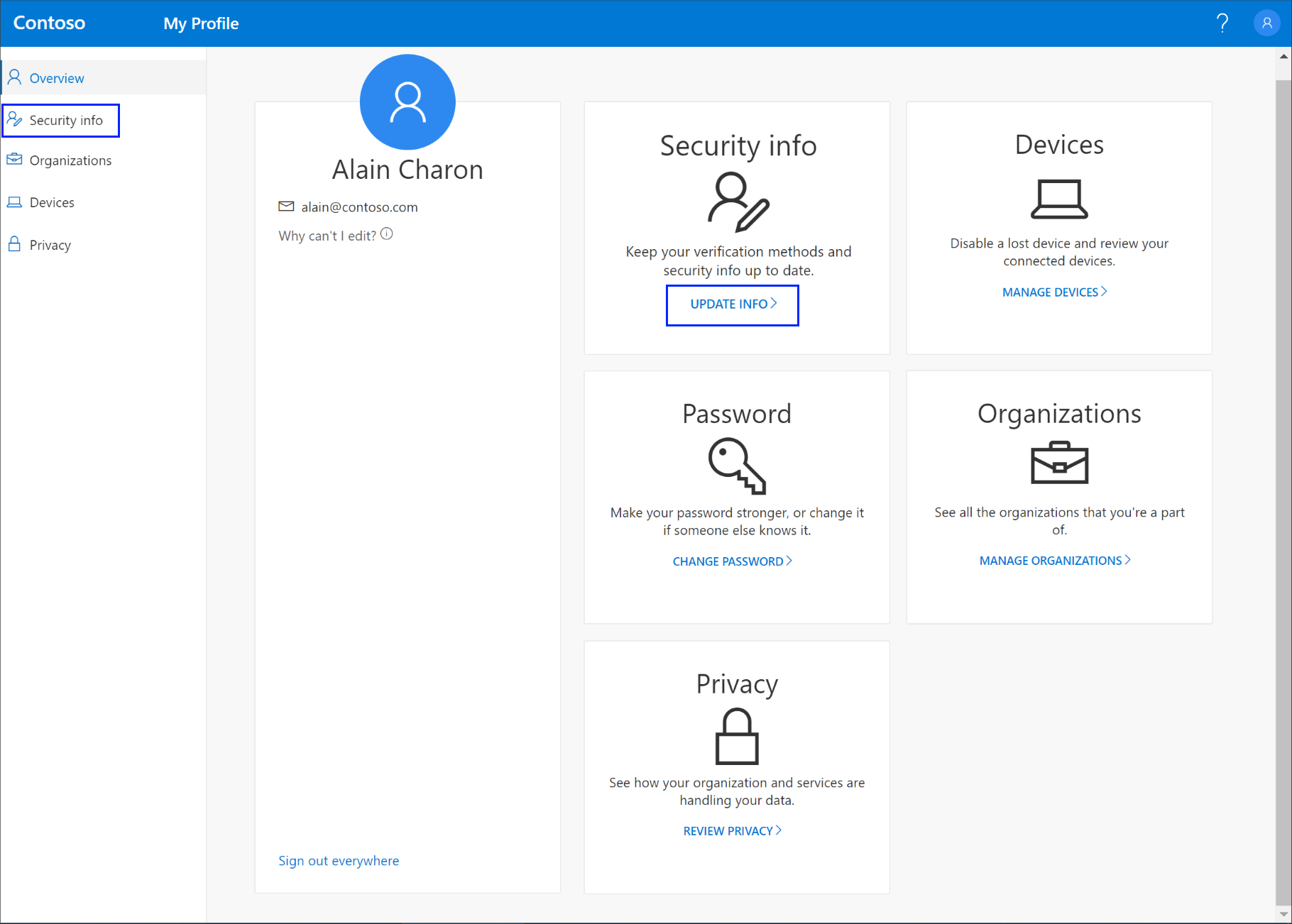
Click "Security info" in the left menu
Once you're signed in, look at the left-hand navigation panel and click Security info.
My Account
›
Security info
03
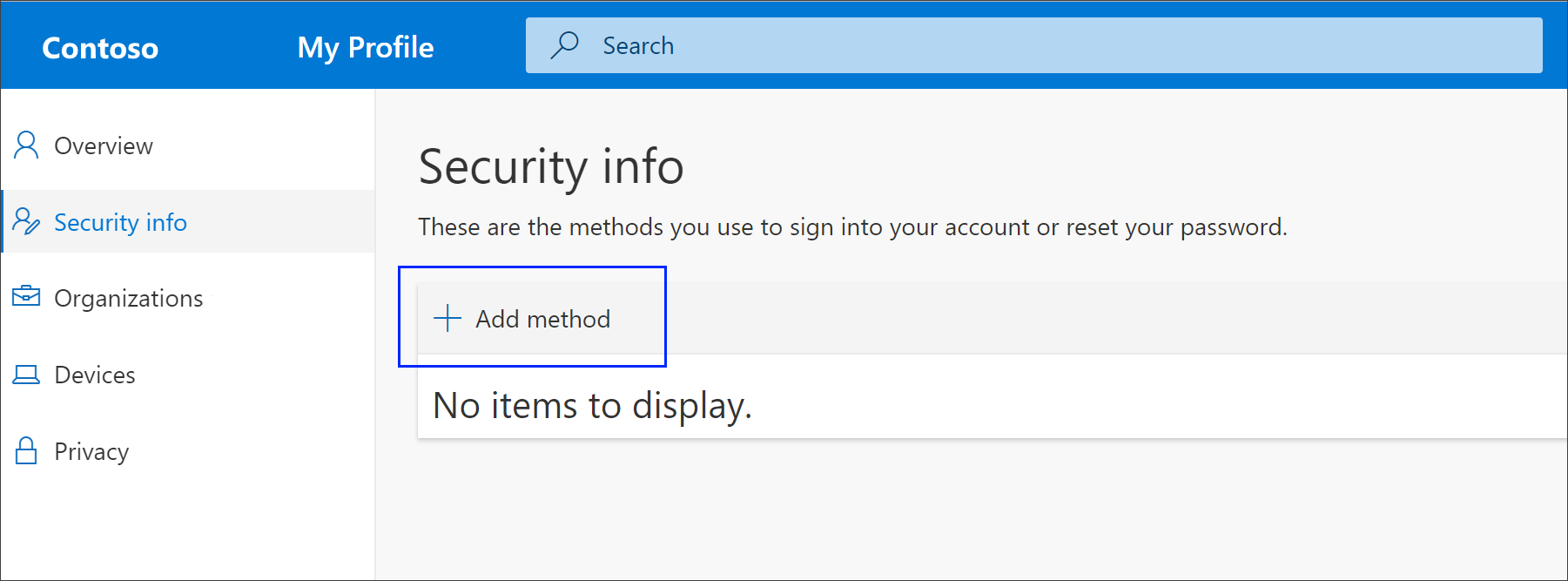
Click "Add method"
On the Security info page, click the Add method button.
Security info
›
Add method
04
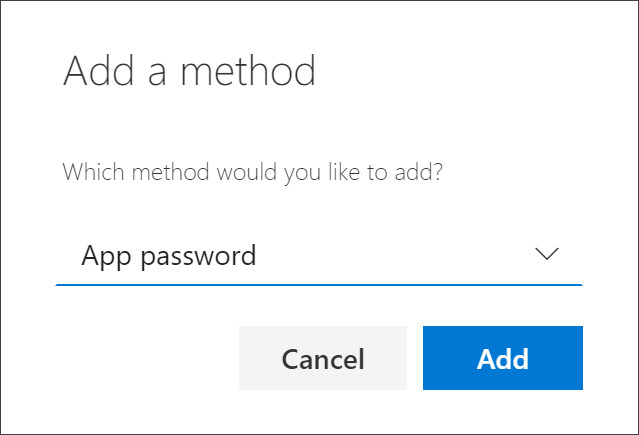
Choose "App password" from the dropdown
A dropdown will appear. Select App password from the list, then click Add. When asked for a name, type something like Unbox and click Next.
Add method
›
App password
›
Add
You'll then be asked to name the app password. Type Unbox and click Next.

05
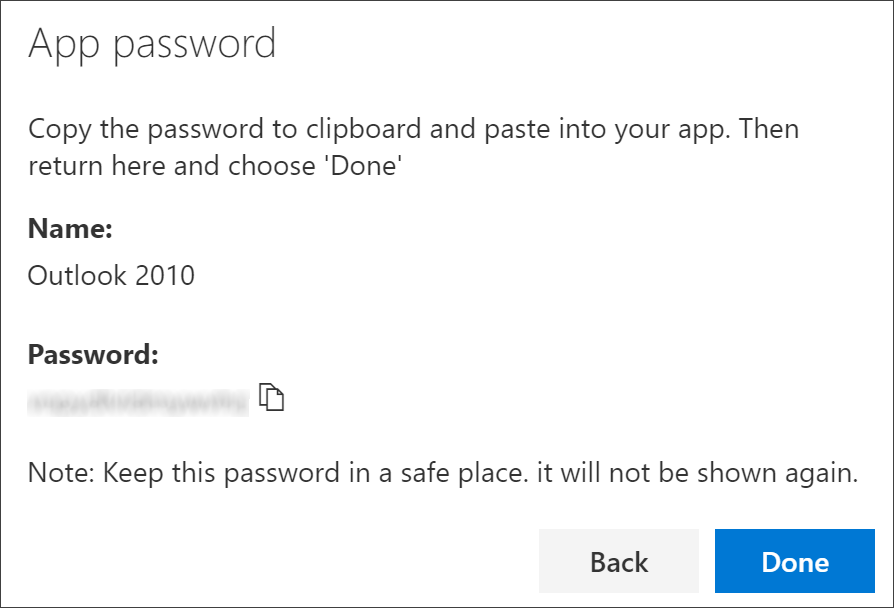
Copy the generated password
Microsoft will display a long randomly generated password. Copy the full thing exactly as shown. You won't be able to see it again after you close this screen — so copy it before clicking Done.
06
Send it to us
Email your app password to us along with your work Outlook email address. We'll handle the rest and confirm once your integration is live.
Step 6 — Send to Unbox
Email us your app password
Include your work Outlook email address and the app password. We'll confirm once it's live.
info@unbox.co.nz
Good to know
| Question | Answer |
|---|---|
| Is this my real password? | No. It's a separate access key — your main password stays private and unchanged. |
| What if I don't see "App password" as an option? | Your IT administrator has it disabled. Ask them to enable app passwords in your organisation's Microsoft 365 settings. |
| Can I revoke it? | Yes. Go back to myaccount.microsoft.com › Security info and delete it at any time. |
| Do I need to do this again? | No. Once set up it runs in the background. You'll only need a new one if you revoke it. |
| Is there a limit on app passwords? | Yes — Microsoft allows a maximum of 40 app passwords per account. You'd need to delete an old one before creating a new one if you hit that limit (very unlikely). |